


In early 2025, tech giants Apple and WhatsApp warned dozens of European journalists and activists that state-sponsored hackers had targeted their smartphones with highly sophisticated “zero-click” spyware, highlighting an urgent global need for immediate device lockdown.
These targeted campaigns are no longer rare occurrences. For the past 15 years, cybersecurity analysts have tracked a relentless wave of state-backed hacking operations specifically designed to compromise dissidents, human rights defenders, and political rivals. These attacks deploy extremely costly, stealthy, and advanced digital weapons engineered to infiltrate mobile devices, which serve as the central repositories of our private lives.
Once installed, this spyware grants operators near-absolute control. State actors can intercept phone calls, harvest private chat logs, steal photos, track real-time GPS locations, and even remotely activate cameras and microphones to record physical surroundings and ambient conversations.
To combat this growing threat, major technology companies have rolled out robust, opt-in defence mechanisms. Apple, Google, and Meta now offer specialised security protocols designed to neutralise targeted surveillance.
While these features sometimes restrict minor conveniences, the security trade-off is arguably minimal. Industry experts, security researchers, and privacy advocates strongly advise enabling these protections if your profession or public profile makes you a potential target. Even for average users, these settings provide an invaluable layer of data protection.
No security system is entirely flawless; the battle between software developers and spyware creators remains a constant cat-and-mouse game. However, empirical evidence proves these built-in defences are highly effective.
According to veteran security researcher Runa Sandvik, who has spent over a decade protecting vulnerable communities, these free and easily activated features represent our strongest shield against state-level cyber threats. If they ever interfere with daily tasks, they can be deactivated in seconds, meaning there is virtually no downside to trying them.
Below is a detailed guide on how these safety features operate and how to configure them on your device.
Apple’s Lockdown Mode
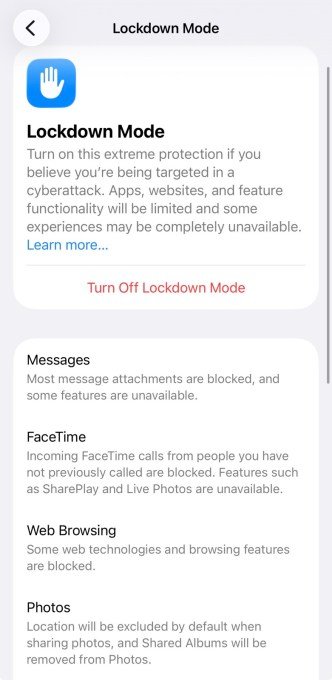
Available across the entire iOS and macOS ecosystem, Apple’s Lockdown Mode significantly hardens your device’s security by disabling or restricting specific interactive features.
Real-world testing by Citizen Lab confirmed that Lockdown Mode successfully blocked NSO Group’s notorious Pegasus spyware. Furthermore, Apple recently stated that it has yet to record a single successful cyberattack on any device with Lockdown Mode active.
Activating Lockdown Mode introduces the following system-wide changes:
- Most iMessage attachments (excluding specific images, audio, and video) are blocked.
- Message links and previews are disabled, displaying only as plain text. (You can still copy and paste these links into Safari or other browsers manually.)
- Web browsing in Safari restricts certain fonts, complex web technologies, and media.
- FaceTime calls from unknown contacts (whom you have not interacted with in the last 30 days) are blocked.
- SharePlay, screen sharing, and Live Photos are completely disabled.
- Incoming invitations for proprietary Apple services are blocked unless initiated by a known contact.
- Focus statuses and Game Center are deactivated.
- Geotags are automatically stripped from shared photos.
- Shared photo albums are removed, and new invitations are blocked.
- Physical USB and accessory connections require the device to be unlocked and approved via passcode.
- Automatic connections to open or unsecure Wi-Fi networks are blocked.
- The device will not connect to legacy 2G or 3G cellular networks.
- Configuration profiles and Mobile Device Management (MDM) enrollment are blocked.
To activate this feature, navigate to Settings > Privacy & Security > Lockdown Mode, and tap to enable. Your device will perform a quick restart to apply the changes. While some websites may initially load differently, users can easily whitelist specific trusted sites and apps without disabling the entire protocol.
Google’s Advanced Protection Program
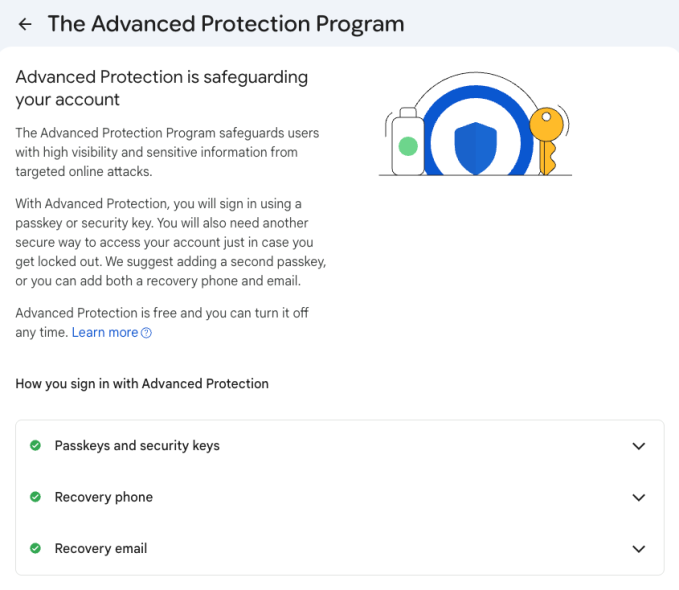
Launched in 2017, Google’s Advanced Protection Program is engineered to defend high-risk accounts against sophisticated phishing and hacking campaigns.
The programme implements several critical security layers:
- Strict limits on third-party application access to your Google account data, requiring explicit user permission.
- Deep Gmail scans to detect advanced phishing attempts and malicious scripts.
- Enhanced Google Safe Browsing warnings in Chrome for risky websites and downloads.
- An Android restriction that permits app installations only from verified marketplaces.
- Rigorous identity verification steps during login attempts to block unauthorised access.
To enrol, visit the official Advanced Protection page, click “Get Started”, and follow the prompts. You will need to configure a physical security key or a software passkey, alongside setting up robust recovery options.
Android’s Advanced Protection Mode
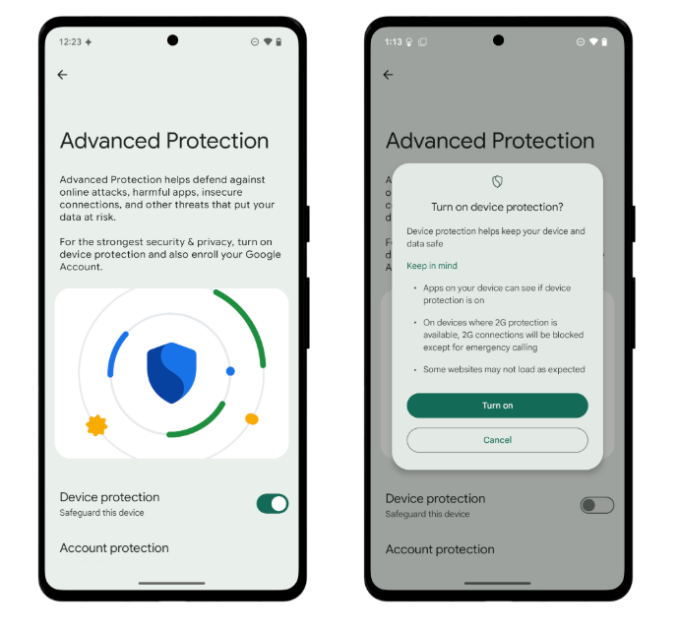
Introduced last year as a direct counterpart to iOS security features, Android’s Advanced Protection Mode delivers enterprise-grade security to Google’s mobile OS.
This mode activates the following protective measures:
- Mandatory Google Play Protect scanning to identify malicious app behaviours.
- A complete ban on sideloading apps or running updates from unverified sources.
- Memory Tagging Extension (MTE) activation on compatible hardware to block memory-based exploits.
- Automatic device locking upon detecting physical theft indicators (using motion sensors).
- Automatic locking if the device remains offline for extended periods.
- A forced reboot after 72 hours of lock time, making forensic extraction via tools like Cellebrite incredibly difficult.
- Deactivation of USB data connections while locked.
- Proactive scanning for malicious or unwanted SMS messages.
- Visual warning flags on links sent by unknown contacts via Google Messages.
- A complete block on legacy 2G cellular connections.
- Integrated spam caller identification and automated call screening (where regionally supported).
- Enforced HTTPS-only browsing in Chrome.
- Restricted JavaScript execution to reduce the browser’s attack surface.
- Optional Intrusion Logging to assist security researchers in analysing potential attacks.
To enable this on your Android device, go to Settings > Security & Privacy > Other Settings > Advanced Protection, and select Device Protection.
WhatsApp’s Strict Account Settings
With a global user base exceeding 3 billion, WhatsApp remains a prime target for government-sponsored cyber espionage.
The market for WhatsApp exploits is worth millions. Following a massive 2019 breach affecting 1,200 users, WhatsApp identified another campaign in early 2025 targeting approximately 90 European civil servants and journalists.
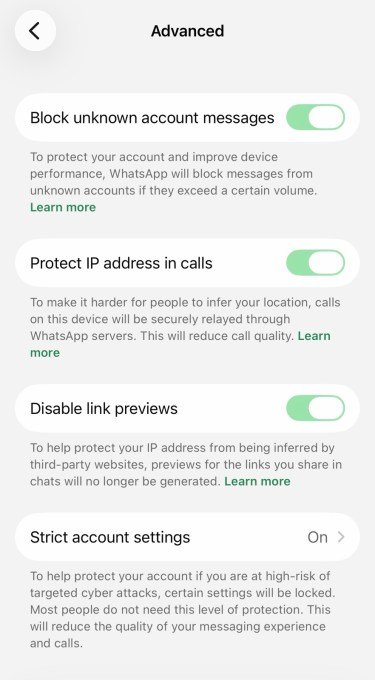
In response, WhatsApp introduced Strict Account Settings to reinforce user privacy.
This feature automatically deploys:
- Mandatory two-step verification.
- Instant security notifications if a contact changes devices or if account hijacking is suspected.
- Automatic blocking of media attachments from unknown senders.
- Deactivation of link previews to prevent IP leaks.
- Silencing of calls from unknown numbers.
- IP address masking during active voice and video calls.
- Restricting profile photos, status updates, and “Last Seen” visibility to existing contacts.
- Restricting group chat invitations exclusively to contacts.
To enable this protection, open WhatsApp on your primary device, navigate to Settings > Privacy > Advanced, and toggle the feature on.